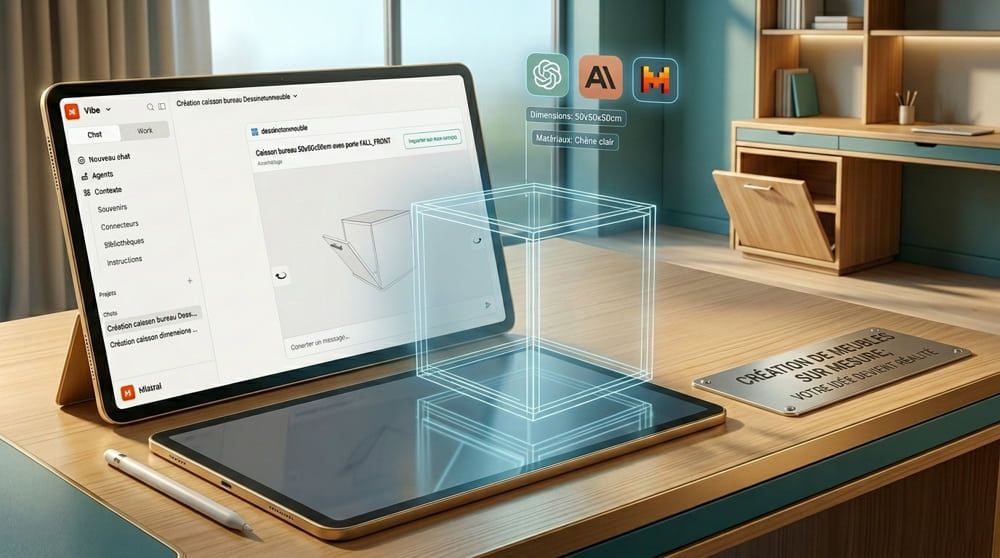
The major AI platforms — ChatGPT, Claude, Mistral — let you connect external tools directly within your conversations, so the assistant can act on those tools on your behalf.
AI for your custom furniture
DessineTonMeuble offers its own connector, giving access to a wide range of features from our configurator. Describe a piece of furniture or a fitted layout — from text, a photo, a sketch, or simply by chatting with the AI — and the assistant creates it, adjusts it to your request, then lets you import it into your DessineTonMeuble account in one click. With Claude and Mistral, you can also find and edit a project already saved in your account, directly from the conversation.
This page explains how to use the connector, then how to install it on each platform.
Content up to date as of August 8, 2026. AI platform interfaces change very quickly — if the screenshots no longer match exactly what you see, check the relevant platform's documentation. Results may also vary depending on the model used.
Example of use
Once the connector is active in your conversation, simply describe the piece of furniture you want to create. You can start from text, a photo, a sketch, or a floor plan.
Example prompt:
«Using the DessineTonMeuble connector, create a small wardrobe 64 cm wide, 42 cm high, and 38 cm deep, with 2 columns and 1 height-adjustable shelf in each column.»
The AI generates the piece of furniture and displays it in an interactive 3D view within the chat window. You can ask for changes at any time: adjust the dimensions, add doors, change the number of shelves…
Once you're happy with the result, click Import to DessineTonMeuble. The piece is added to your account — you'll be asked to sign in or create an account if you haven't already. You can then finalize it, choose materials, and order it.
Editing an existing project (Claude and Mistral)
On Claude and Mistral, the DessineTonMeuble connector can also access projects already saved in your account: simply ask the assistant to list your projects or fetch a specific one, then describe the changes you want.
Example prompts:
«Give me the list of projects in my account with their numbers.»
«Open project 123456 and add 2 drawers at the bottom of the first column.»
For safety, the assistant never edits your saved project directly: it opens a working copy to apply your changes, and leaves it up to you to decide whether to save it. It usually lets you know on its own, for example:
«A working copy has been opened (ID #1004) if you'd like to edit it — your original saved project remains unchanged.»
Changes are not saved automatically. If you want to keep the result, explicitly ask the assistant to save it — for example “save these changes” or “save the project.” Until you ask, your original project stays unchanged in your account.
Installing the connector
ChatGPT
Our app is currently pending official approval from OpenAI. In the meantime, you can add it manually via developer mode — not from the conversation settings, but from your user profile:
Open your profile in ChatGPT, Personalization section, then Apps.
Click Advanced settings, then "Enable developer mode."
Once the connector is created, you must explicitly enable it in each conversation: click the + button in the message bar, then More, and select the DessineTonMeuble connector you just created.
The result appears directly in the conversation: the piece of furniture is shown in an interactive 3D view, with an Import to my account button.
On ChatGPT, the connector only allows you to create new furniture — access to projects already saved in your DessineTonMeuble account is not yet available on this platform.
Claude
Adding a custom connector is available on all Claude plans, including the free plan. It's not done from within the conversation, but from your profile settings.
The connector is then active by default in your conversations. You can check its status by clicking the + button in the message bar, then Connectors: the DessineTonMeuble toggle should be enabled.
The result of your creation appears directly in 3D in the conversation, with an Import to my account button.
Mistral
Adding a custom MCP connector is available on all Mistral plans, including the free plan. This is done in Mistral Studio, under the Connectors section.
In Mistral Studio, click Connectors in the left-hand menu.
Select the Custom MCP connector tab.
Fill in the required fields:
Title: DessineTonMeuble
Server URL:https://mcp.dessinetonmeuble.fr
Authentication method: None
Click Create.
Unlike ChatGPT, you must enable the connector in each conversation: click the + button in the message bar, then Connectors, and check DessineTonMeuble.
The furniture created is shown in 3D in the conversation, with an Import to my account button.
Gemini
Google Gemini does not yet support adding a custom MCP connector.
Other platforms
If your favorite AI assistant supports adding a custom connector, there's a good chance it's compatible with the DessineTonMeuble connector. Feel free to send us your setup instructions — we'll add them to this article!
Which models give the best results?
Not all models are equally good at generating consistent furniture. Based on our tests, the following models work well:
Claude Sonnet and above: very effective, understand dimensions and structural constraints well.
Lighter models ("mini," "flash," "tiny" versions…): mixed results, often requiring too many iterations to reach a consistent piece of furniture.
Free plans are generally sufficient for simple projects, but to go further — complex layouts, many iterations, using images or sketches — free account quotas are reached quickly. A paid plan gives access to the most capable models and unlimited use.
We continuously improve our connector to make it as easy as possible for assistants to use.